Setup Guide
Welcome to Clara. This documentation will guide you through the initial setup process, linking your Macho account, and injecting the menu safely.
Please ensure you have read the Terms of Service before proceeding with the installation.
STEP 01 License Key & Email
After completing your purchase, our system automatically generates a unique license key for you.
Please check your email inbox. The key usually arrives within 5-10 minutes. Check your spam folder if it does not appear.
Once you have your key, use the link below to create your Clara account:
STEP 02 Connecting Macho Auth
Proper configuration of the Macho injector is critical for safety and functionality.
1. Injection Settings
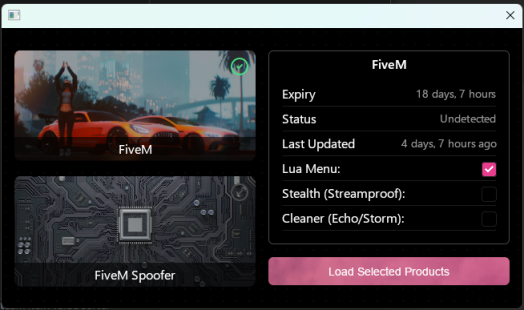
Before injecting, verify the following settings in your loader:
Lua Menu: Must be set to
TRUE(Toggled On)Stealth (Streamproof): Must be set to
FALSE(Toggled Off)
2. Retrieving Auth Key
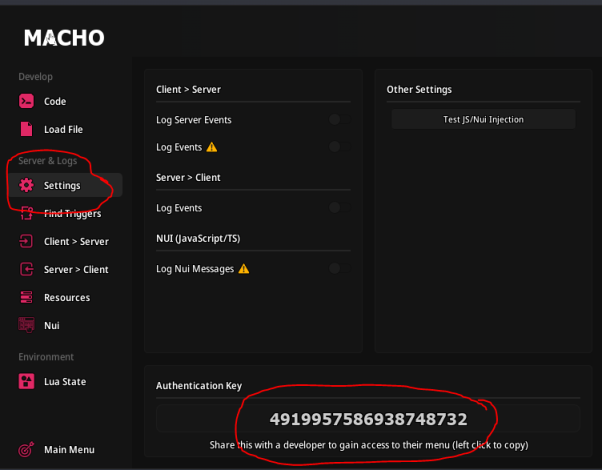
Once you have loaded into the FiveM main menu, open the Macho interface:
- Click Lua Menu at the bottom left corner.
- Navigate to the Settings tab.
- Locate your Auth Key.
- Left Click the key to copy it to your clipboard.
STEP 03 Final Connection
Return to the Clara Dashboard on your browser. You will see a prompt to connect your account.
Paste the Auth Key you copied in the previous step into the input field and click Connect.
You can only link this key once. It binds your Clara account to your Macho license permanently. If you need to change this later (e.g., new Macho account), you will be required to open a support ticket.
STEP 04 Menu Controls
Quick reference for navigating the Clara menu.
1. Subsection Navigation (Q & E)
Use Q and E to move left and right through sub-sections.

2. Menu Navigation (Arrow Keys)
Use the arrow keys to move, Enter to select, and Backspace to go back.
